

Best AI Tools for Product Image Generation in 2026
Choose a tool for the work your photo needs: a new background, a staged scene, a listing layout, or a careful repair.
See the example
From source photo to acceptance checks
The source is a clear photo of the actual blue ceramic mug, with the handle fully visible.
Product
The mug stays blue, its handle retains the same shape, and its visible surface details match the photo.
The secondary listing image needs a pale countertop, a quiet background, and room for the intended crop.
Setting
A pale countertop, a soft contact shadow, and enough empty space for the intended crop.
The result must not add lettering, reshape the handle, or include props that look like part of the sale.
Rejection
Reject added lettering, a reshaped handle, or props that could be mistaken for items included in the sale.
Editorial example only. These are acceptance targets, not outputs or results from a product test.
Compare every generated candidate with the original at full size before using it.
Choose by the work left to do
Replace or generate the setting

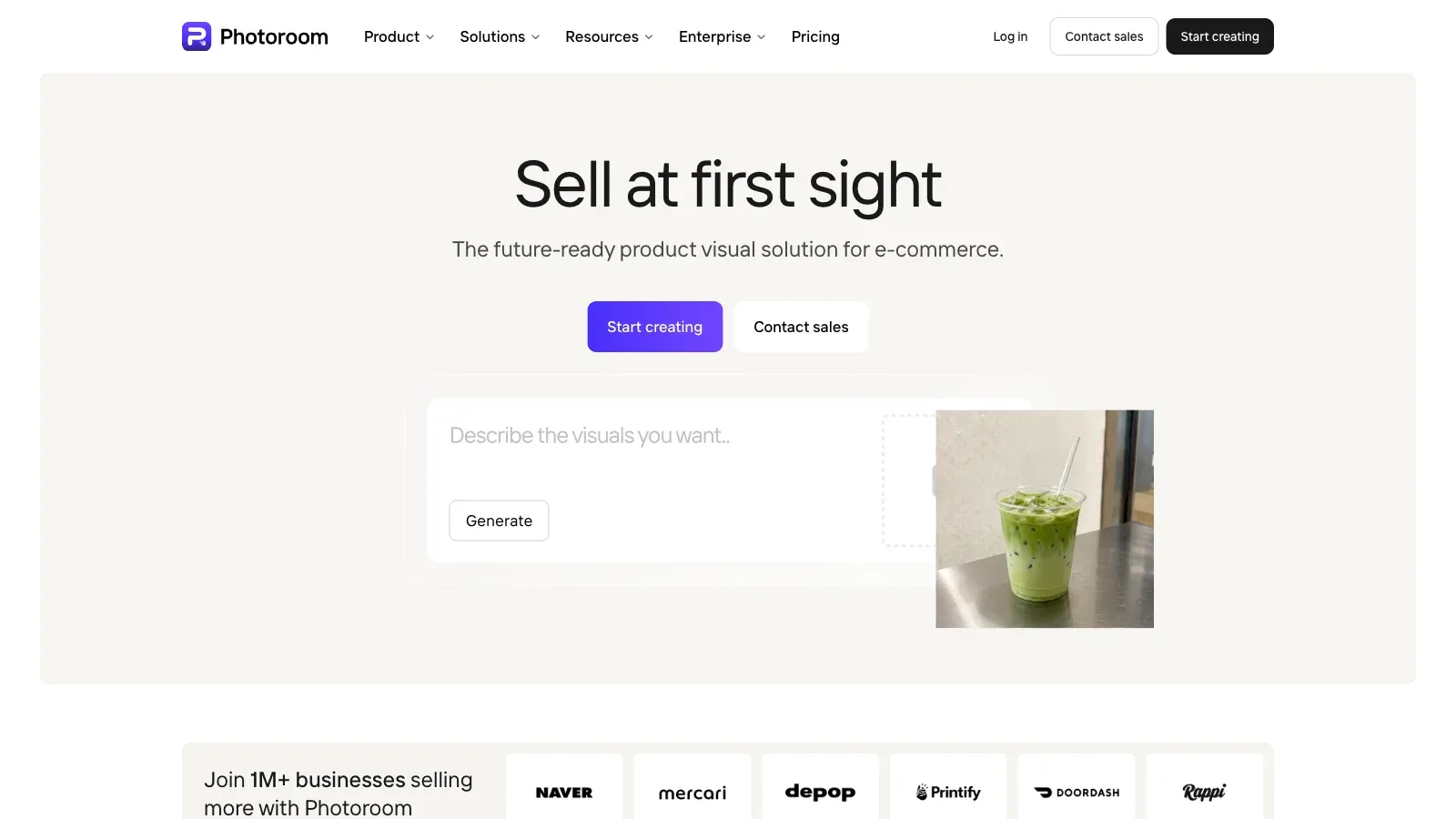
Photoroom
Start here when the product is already photographed and the main task is replacing its setting.

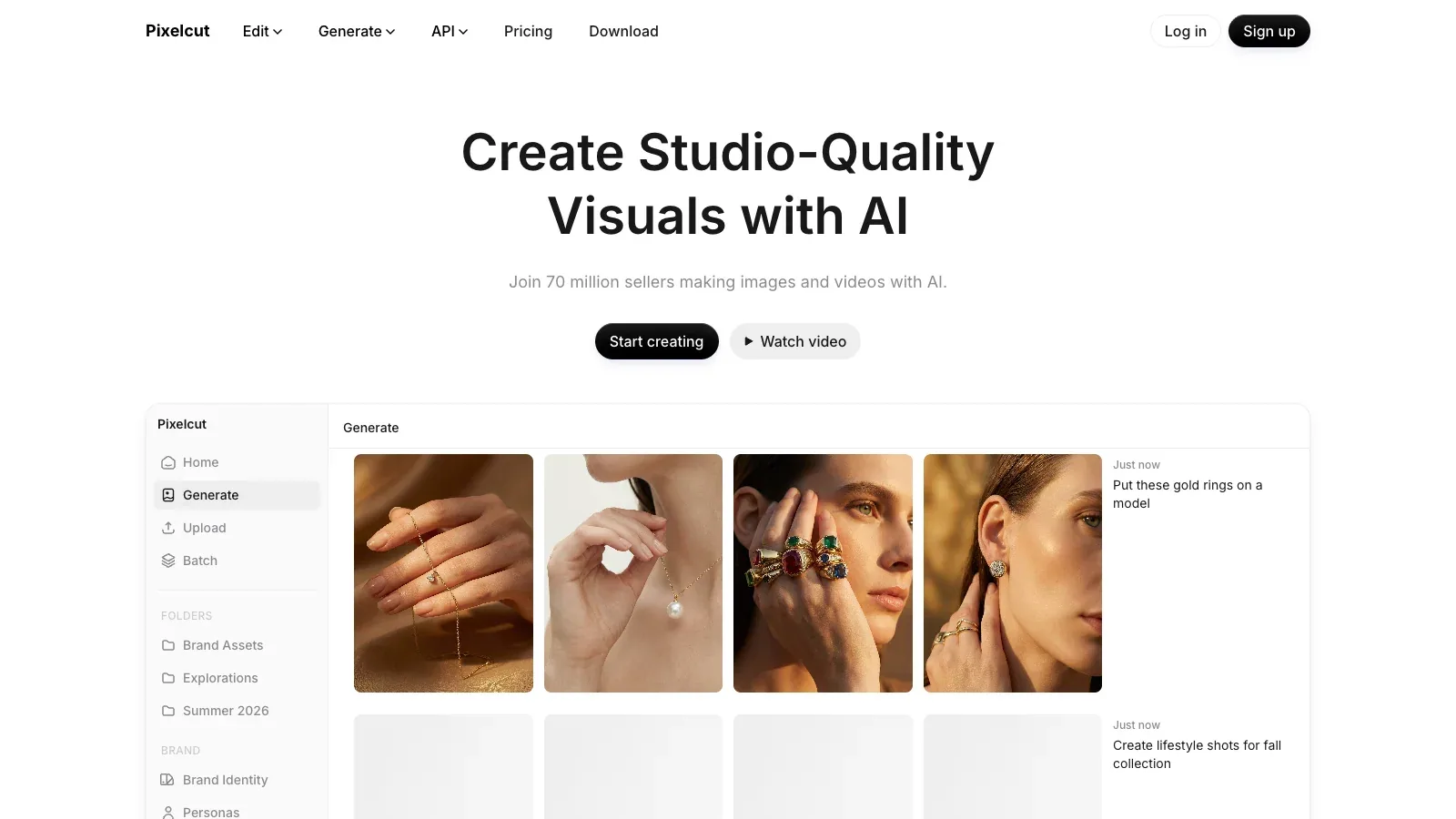
Pixelcut
Choose it when you want Studio or Lifestyle scene formats and may later process a larger catalog.

Pebblely
Choose it when you want theme-led product scenes and a plan with a defined monthly image allowance.
Control the scene composition
Finish a designed listing
Repair a difficult edit
Compare the workflow before you upload
Eight product-photo workflows. Official sources checked September 15, 2026; unverified prices are marked in the Tool profiles.
| Tool | Best fit | Input | Editing control | Catalog work | Access and cost |
|---|---|---|---|---|---|
| Photoroom | Focused product-background generation. | An uploaded product photo plus a theme, text prompt, or guidance image. | Background choices and editor adjustments; review the product after every generation. | Batch and product-catalog access points are available; plan access varies. | Requires AI credits; paid plan allowances vary. |
| Pixelcut | Studio and lifestyle product scenes. | JPG, PNG, or HEIC product photo plus scene and prompt choices. | Scene format, angle, background, prompt, aspect ratio, and resolution. | Batch background removal and resizing, plus an API for automated workflows. | Free editing tier; Pro and Business add credits, batch exports, and a commercial license. |
| Pebblely | Theme-led product scenes and paid bulk generation. | An uploaded product image plus a template, background theme, or custom prompt. | Templates and prompts guide the scene; Pebblely adds matching shadows and reflections. | Basic and Pro include bulk generation for multiple products. | Lite is US$9 for 30 images monthly; Basic is US$19 for 200; Pro is US$39 for 500. |
 Flair.ai Flair.ai | Product scenes arranged with props before generation. | Product image and staged props; custom model training uses 6–10 photos. | Drag-and-drop staging plus a separate AI Image Editor. | Reusable templates and a documented bulk content workflow. | Free, Pro, Pro+, Scale, and Enterprise. Pro+ and above list a Company Commercial License; paid billing basis needs confirmation. |
 Claid Claid | Product scenes with placement and reference controls. | JPG, PNG, WEBP, or HEIC up to 10 MB. | Precise, Creative, Inspiration, Background, and Product Swap modes. | Reusable background templates in Studio. | Limited trial; Essentials and Pro amounts unverified; Business uses custom pricing. |
 Canva Canva | Product images that also need a designed layout. | An uploaded photo plus a background prompt; designs can include text and illustrations. | Manual cutout refinement and a broader design editor. | Bulk design creation is listed in the plan comparison; confirm access for your plan. | Free plan with limited AI use; Pro, Business, and Enterprise add larger allowances and controls. |
 Adobe Express Adobe Express | Background swaps followed by a designed listing graphic. | JPEG, JPG, PNG, or WebP up to 40 MB, with a clear subject. | Free backgrounds, Adobe Stock or uploaded images, generated scenes, and the full Express editor. | Best suited here to designed variants; the cited background workflow does not describe bulk catalog processing. | A Free plan is available; Premium adds 250 generative credits per month and regional pricing. |
 Adobe Photoshop Adobe Photoshop | Precise local edits and difficult composites. | JPEG, JPG, or PNG; the web demo lists a 40 MB limit and one file at a time. | Selections, prompts, reference images, nondestructive Generative Layers, and manual refinement. | Use here for manual refinement of difficult images. | Paid Photoshop plans and a free trial; generative-credit allowances vary by plan. |
A closer look at eight tools
Photoroom
- Free
- Price unverified
- Custom pricing
- Choose it when
- You want a dedicated product-photo workflow with suggested backgrounds, prompts, or image guidance.
- Think twice when
- The Web App treats a selected theme and a text prompt as separate choices. Selecting a theme after writing a prompt ignores that prompt.
- Before you start
- Try one clear image and inspect label fidelity, cutout edges, available credits, and export size.
Pixelcut
- Free
- $8/month, billed yearly
- $24/month, billed yearly
- Choose it when
- You want scene, angle, aspect-ratio, and resolution controls around an uploaded product image.
- Think twice when
- Pixelcut says generated AI Photoshoot backgrounds vary and cannot be reused identically with a built-in control.
- Before you start
- Create one scene and check the product details, output resolution, commercial-use terms for your plan, and whether background variation is acceptable.
Pebblely
- $9/month
- $19/month
- $39/month
- Choose it when
- You need several listing or marketing scenes from uploaded product images and may want bulk generation.
- Think twice when
- Lite includes 30 images per month but no bulk generation. Basic and Pro add bulk generation with 200 or 500 images per month.
- Before you start
- Generate one representative SKU and inspect the product outline, label, shadows, reflections, and background consistency before using bulk generation.

Flair.ai
- Free
- Price unverified
- Custom pricing
- Choose it when
- You have a source photo and a clear composition, such as a bottle on a plinth with props placed around it.
- Think twice when
- Flair does not support negative prompting. Custom model training is a separate workflow requiring 6–10 images; it is not needed just to describe a scene.
- Before you start
- Arrange a simple scene and inspect product scale and lettering. Confirm commercial-license coverage and the billing basis before choosing a paid plan.
Claid
- Price unverified
- Custom pricing
- Choose it when
- You have a product photo and want a controlled placement, a specific background, or several scene directions.
- Think twice when
- Creative mode can change the product position and scale. Use Precise for a fixed placement and check the result; the public paid-plan amounts did not load during review.
- Before you start
- Try Precise with one product photo. Compare the outline, label, and scale with the original, then confirm the operation cost and download size.
Canva
- Free
- $144/year
- $250/year per person
- Custom pricing
- Choose it when
- You need background generation or removal and a drag-and-drop layout editor in one workflow.
- Think twice when
- AI use draws from a shared allowance that depends on the plan and task. Background removal is listed as a Pro feature on the pricing page.
- Before you start
- Confirm the AI and background-removal access in your plan, then check the cutout before adding text or brand assets.

Adobe Express
- Free
- Price unverified
- Custom pricing
- Choose it when
- You want to remove or generate a background, then add templates, text, logos, colors, or Adobe Stock assets.
- Think twice when
- The quick action works best with a clear, unobstructed subject. Premium pricing is regional, and generative AI access depends on the selected plan.
- Before you start
- Upload one clear product image, inspect the cutout, and confirm the available generative credits and export options before building variants.
Adobe Photoshop
- $44.51/month, annual commitment
- $38.76/month, annual commitment
- $131.68/month, annual commitment
- Choose it when
- You are comfortable with a full image editor or need control that a one-click background workflow does not provide.
- Think twice when
- Photoshop is a broader paid editing workflow, and Generative Fill use depends on the credits or access included with the selected plan.
- Before you start
- Test the hardest edge first and confirm the selected plan, generative-credit allowance, file input limits, and export requirements.
Test the same representative product photo in two or three shortlisted tools. Compare product fidelity, edge quality, scene consistency, and the edits required before upload.
From source photo to reviewed listing image
Choose a source photo you can trust
Start with a sharp photo of the actual item. Keep its outline and label visible, and retain the original for comparison.
Define the placement
Write down the required crop, dimensions, background, and restrictions on props or text before opening a tool.
Pick the shortest suitable workflow
Use Photoroom, Pixelcut, or Pebblely for background variations; Flair for staged props; Claid for placement and reference controls. Choose Canva or Adobe Express for layouts, and Photoshop for precise repairs.
Approve one representative image
Compare it with the original at full size. Check the label, outline, color, texture, edges, shadows, and props before processing more images.
Download and inspect the file
Open the exported file and check its dimensions and crop. Upload it manually only after it meets the destination's current requirements.
A product-scene brief to make your own
Replace the brackets with your scene brief. Flair requires positive descriptions, so keep unwanted props and text in the review checklist. This authored prompt has not been tested in these products.
Place the photographed product on [surface] against [background]. Use [lighting direction and softness] with a natural contact shadow. Leave [space needed for the crop] around the product. Preserve its shape, color, label, and visible details. Include only [approved scene elements].Before you upload
When to change the approach
Which tool should I try first?
Start with Photoroom for background replacement, Pixelcut for configurable scenes, or Pebblely for themes and bulk generation. Use Flair to stage props or Claid to control placement and references. Choose Canva or Adobe Express for a layout, and Photoshop for precise repairs.
Should I generate the entire product from a text description?
Use a photo of the actual item for this workflow. A text description leaves product details unspecified, so it is a poor basis for checking whether the image represents the item being sold.
What if every candidate changes the label or shape?
Stop using those candidates. Try a clearer source photo or a simpler background. Use Photoshop or another manual editor, or take a new photograph if you cannot preserve the product accurately.
Can I use the same scene across a whole catalog?
Approve a representative image first, then compare each additional product against its own source photo. Check whether the chosen tool can reproduce the background closely enough for your catalog.
Can I paste the same prompt into every tool?
Adapt it to the controls the tool provides. Flair does not support negative prompting; describe the scene you want and review exclusions afterward. In the Photoroom Web App, selecting a theme after entering a prompt overrides the prompt.
Does a good-looking result mean it is ready to upload?
Inspect the downloaded file and check the destination's current requirements. A pleasing background does not resolve a wrong crop, altered label, or misleading prop.
Sources
Official product pages used to support the comparison above.
- Photoroom · Best fit
- Photoroom · Input, Editing control, Catalog work
- Photoroom · Access and cost
- Pixelcut · Best fit, Input, Editing control, Catalog work
- Pixelcut · Access and cost
- Pebblely · Best fit
- Pebblely · Input, Editing control
- Pebblely · Catalog work, Access and cost
- Flair.ai · Best fit
- Flair.ai · Input, Editing control
- Flair.ai · Catalog work
- Flair.ai · Access and cost
- Claid · Best fit, Input, Editing control
- Claid · Catalog work
- Claid · Access and cost
- Canva · Best fit, Input
- Canva · Editing control
- Canva · Catalog work, Access and cost
- Adobe Express · Best fit, Input, Editing control, Catalog work
- Adobe Express · Access and cost
- Adobe Photoshop · Best fit, Input, Editing control
- Adobe Photoshop · Access and cost